
A Graphx product New

Check it, fix it, print it. Every Picsha order, from one screen.
Picsha Lab is where your Picsha App orders become finished work. Every order from Prints, Retouch, Posters, Cards, Books and Gifts lands in one queue, whether the customer placed it online or at your kiosk. Fix a crop where it sits, reopen a mug or a photo book in the editor that made it, and send it to the printers and minilabs you already own. It builds on the award-winning Photogize and RasterPlus, with a modern interface and more capability, and it runs in a browser on any Mac or PC. Free, on as many workstations as you like.
Turn it on for my store Read the guide →
An order with a problem, fixed and printed, in 30 seconds.
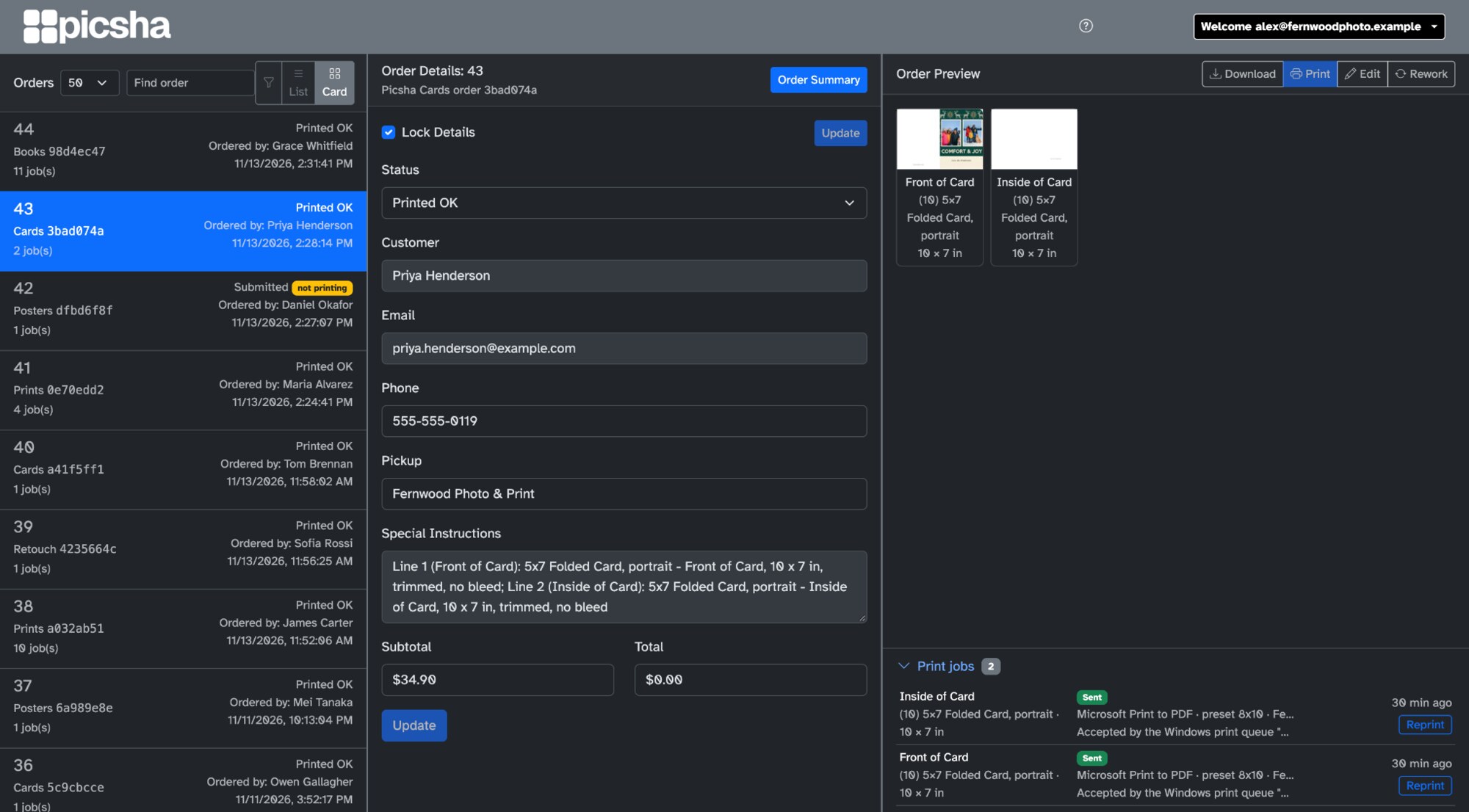
Preflight, in place
Most orders are fine. The Lab is built for the ones that aren’t, so you fix them without leaving the order.
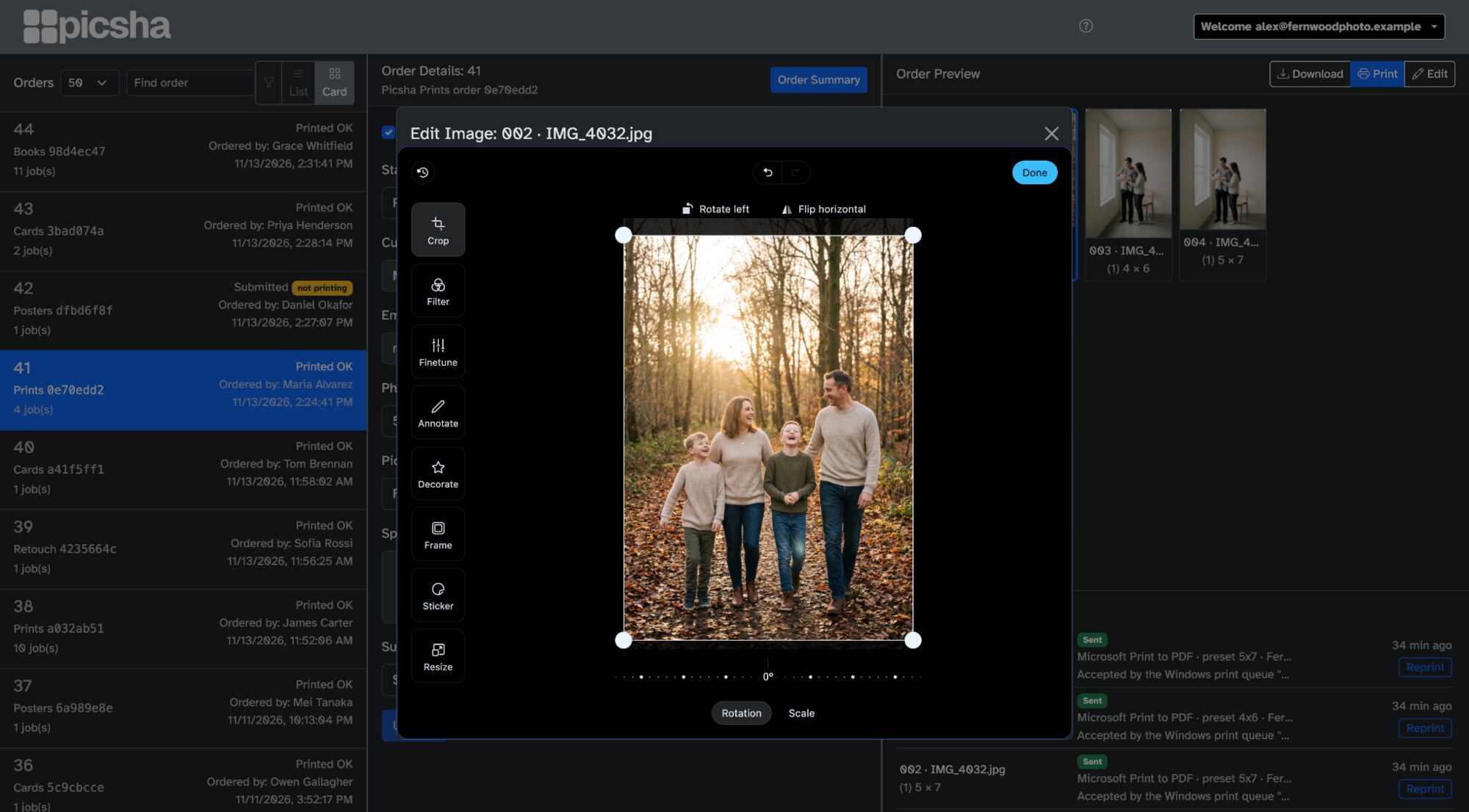
Edit on the order
Select a print and press Edit. Crop, filter, fine-tune, annotate, add a frame or a sticker, resize. Press Done and the order prints the new version.
Start from the customer’s original
Picsha Prints sends the customer’s own photo with the order, so Edit opens that original with their crop, adjustments, filter and frame applied. Change any of them, and the Lab writes a new full-size print file.
Nothing is lost
Reopen an edited job and you are back at the original with your edits on top, ready to change or undo. The order’s status does not move and the customer sees nothing.
See what will print
Each job shows the size it prints at, such as “(1) 11 inch · 11 × 16.5 in”, so a poster named by one side is never mistaken for another size.
Photogize Rework, for everything that isn’t a plain print
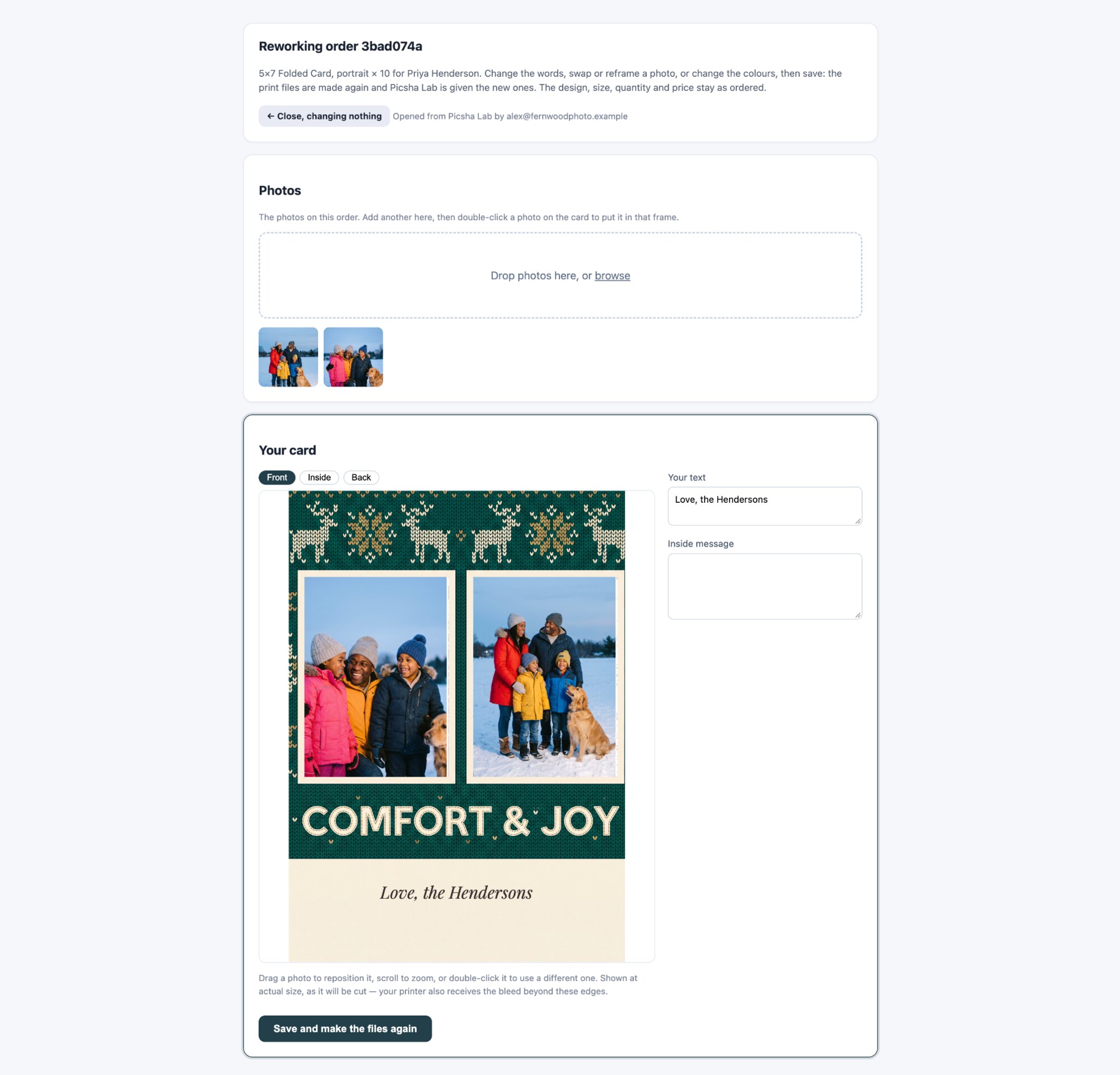
A mug, a folded card or a 40-page book is not a photo with a crop. Only the editor that made it can change it. Photogize Rework, our own technology, opens that editor from the Lab with the customer’s design loaded.
Gifts, cards and calendars
The same editor the customer used. Move or swap a photo, fix the wording, change the layout, save.
Posters and restored photos
Render a new version with a different style, title or instruction, look at the preview, and use it. The full-size file replaces every print job on the order.
Photo books
Swap or restore pages, edit headings and captions, change the title or the look. Only the pages you changed are sent again.
Same order, same price
A rework changes how the product looks and nothing else: product, size, quantity, price and order number stay as the customer paid for them. The job shows who reworked it and when.
Safe while it’s open
An order being reworked is held back from automatic printing until you save or cancel, and nobody else can start a second rework on it.
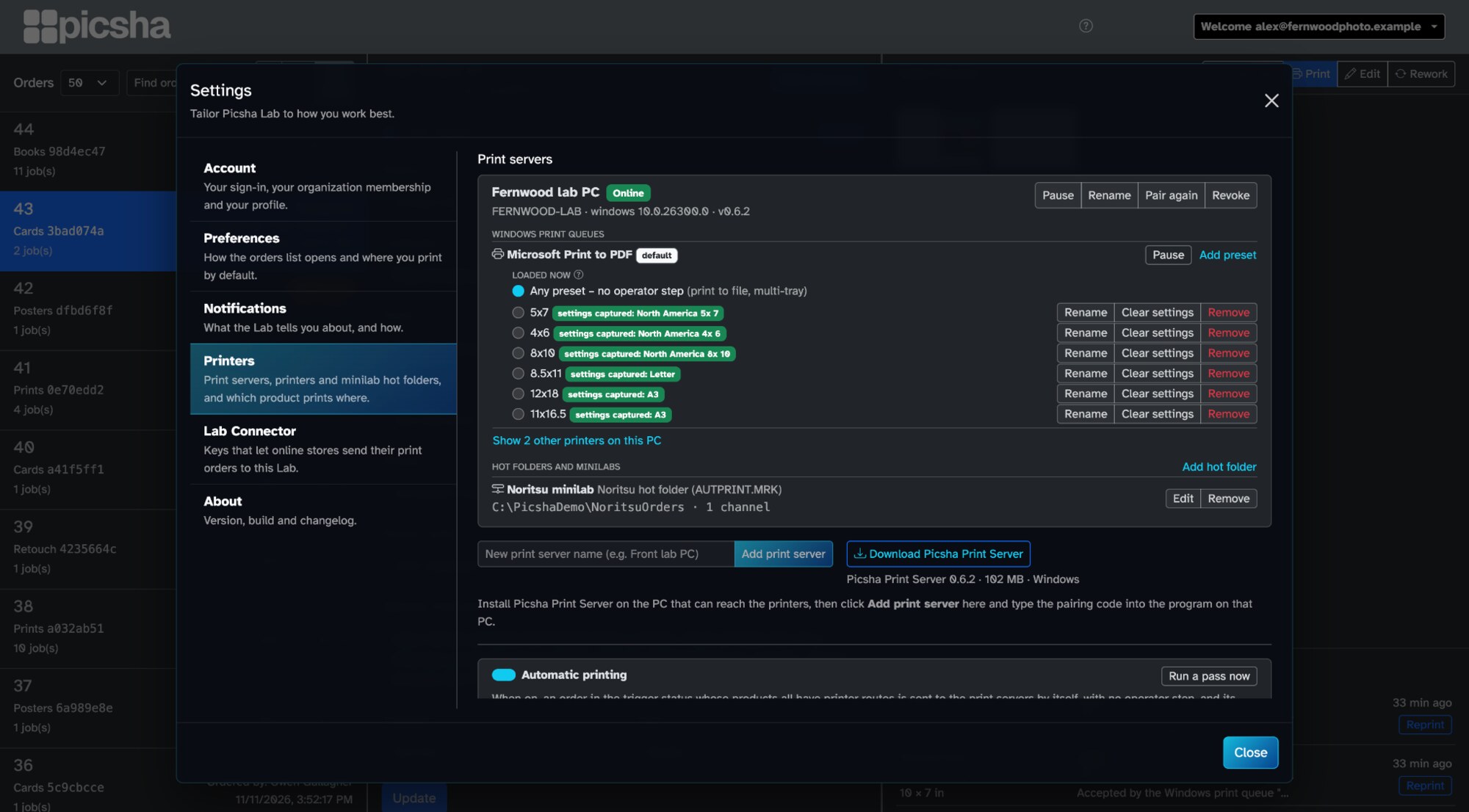
Prints to what you already own
The Lab runs in your browser. Printing is done by Picsha PrintServer, a small Windows program on the PC that can reach your printers. Operators’ own machines, Mac or PC, need nothing installed.
Modern printers, at their own resolution
Any printer installed in Windows is a destination: inkjet, dye-sub, wide-format. Jobs are rendered at the printer’s own resolution, so today’s very high resolution devices get every pixel.
Legacy minilabs, too
Hot-folder output for Noritsu, Agfa d-lab and Fuji Frontier minilabs, written the way the minilab expects, with your channels and print codes. Tell us what you run and we’ll set it up with you.
One preset per paper
Capture the driver settings for “4×6 Luster” once on the lab PC. Tell the Lab which paper is loaded now, and jobs for other papers wait.
Every product knows where to go
Route each product to a printer and preset, a channel or a print code. Match by size routes new products to the preset of their paper size, after you confirm the list.
Automatic printing
Switch it on and paid orders print without a click. An order with a product that has no route says “not printing” and tells you why.
Never twice by accident
If a job is interrupted while it is being sent, the Lab says Check printer and waits for you. Nothing reprints until you choose.
How it fits together
1. Picsha Lab, in the browser
A web application at your own address. Sign in from any Mac or PC, at the counter, in the back, or at home.
2. Picsha PrintServer, on one PC
A Windows 10 or 11 tray program, signed by Graphx. Pair it with a one-time code. It makes outbound connections only and opens no ports.
3. Your Picsha Apps
Issue a connector key in the Lab, paste it once into Picsha Hub, and every product you carry sends its paid orders to your Lab.
Built for a working lab
Find any order
By the Lab’s number, the store’s own order number from the customer’s confirmation email, or part of a name.
The order as it was placed
Customer, pickup location or shipping address, and the store’s order number, on the order and on the printed Order Summary.
Your people, your roles
Invite staff by email, choose who administers printers and who prints. Two-factor sign-in is available.
Told when it matters
Notifications by email for the events you choose, at once or as a daily digest.
Always current
The Lab updates itself. PrintServer offers its updates from the tray and installs only files signed by Graphx.
Coming from Photogize Lab?
Picsha Lab is where our lab software goes next. It stands on two award winners: Photogize, a Photo Trade News Top Product of the Year in 2003, and RasterPlus, a DIMA award winner at the PMA Show in 2000. Picsha Lab takes orders from your Picsha Apps, and every Picsha App runs online and on a kiosk. So Picsha Lab with the Picsha Apps can completely replace Photogize Lab, PhotoCentral and Photogize Kiosk: the same counter, the same printers, one modern stack. Move when you’re ready. Photogize Lab stays fully supported in the meantime. Photogize Lab support →
Free. Unlimited workstations.
Part of the Picsha App stack
Picsha Lab and Picsha PrintServer come with your Picsha Apps. No license, no per-seat fee, no charge per order for using them.
As many screens as you need
Open the Lab on every workstation in the building. Pair a print server on each PC that drives a printer.
You pay only on what you sell
Your Picsha App rates do not change. See the rates →
The holiday rush is here. Fix it before it prints.
Graphx creates your Lab for you. Tell us what you print on and we’ll set it up and pair your first print server with you.